Every Tool on the Shelf.
Each one does one job well. Share photos, PDFs and videos to WorkKit from any app, and they wait in the Inbox until you pick a tool.
Expense Reports
Collect receipts in one place and export one PDF.
- Add receipts from Photos, the camera or Files, or scan paper receipts.
- Share a receipt from another app straight into WorkKit.
- Name each receipt, or let WorkKit suggest a label from the receipt's text, read on your phone.
- Drag receipts into order, add a date range, and archive finished reports.
- Export one PDF with a cover page, a receipt list and every receipt, ready to email or save to Files.
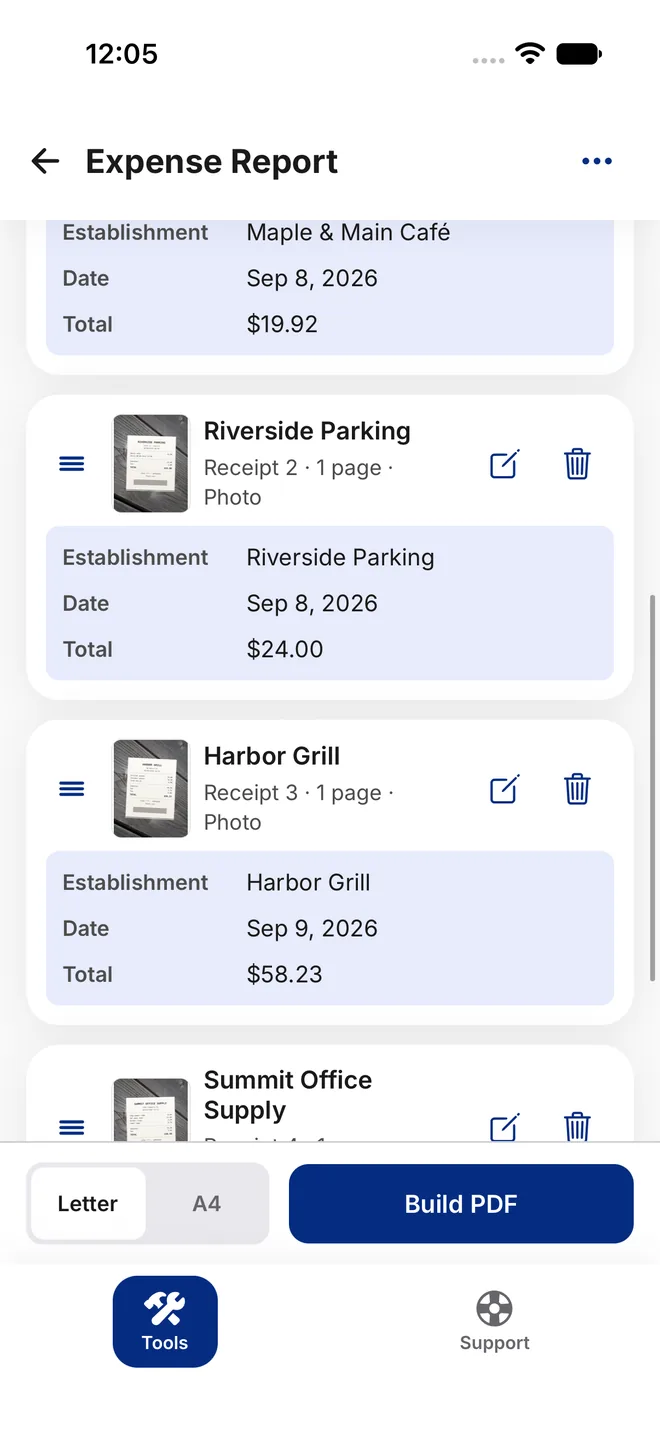
Photo PDF
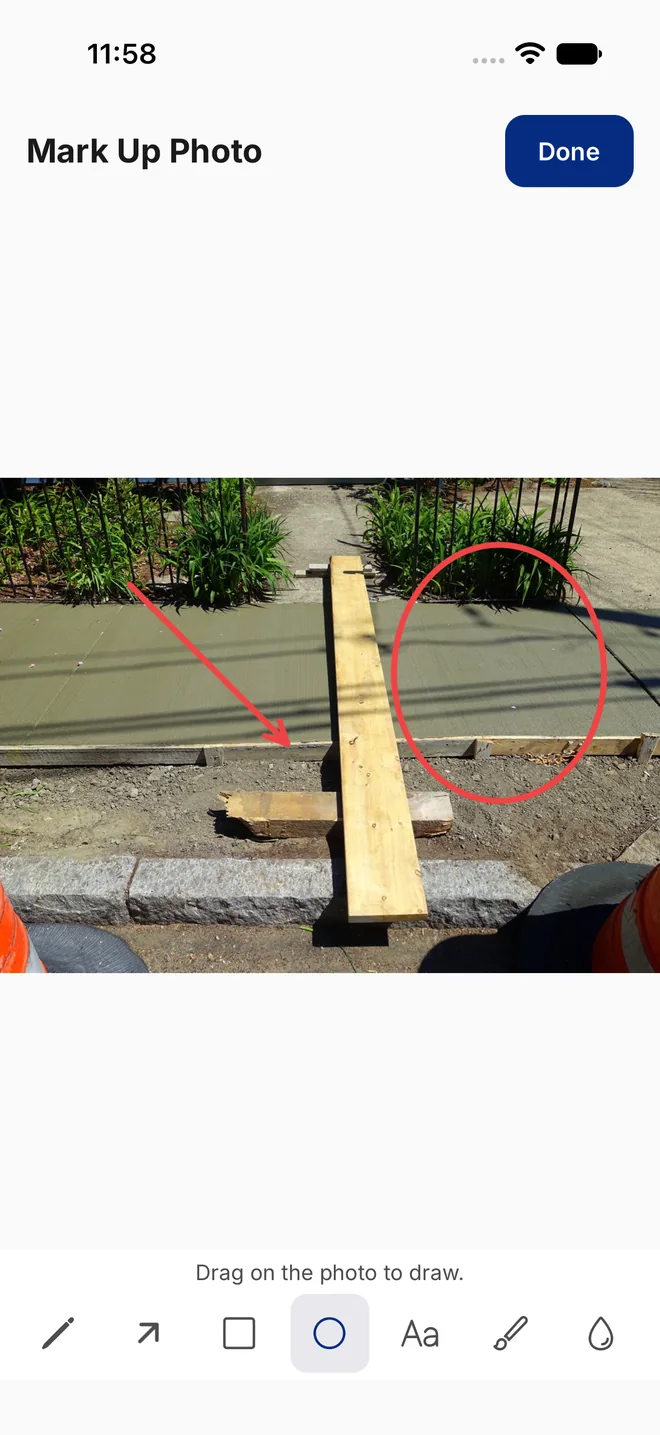
Turn photos into a clean, captioned PDF.
- Up to 50 photos, one, two or four to a page, on Letter or A4 paper.
- Add captions, arrows, shapes, highlights and text, and blur anything that shouldn't be shared.
- Add your company name, logo and color.
- Preview every page before you share it.
Scanner
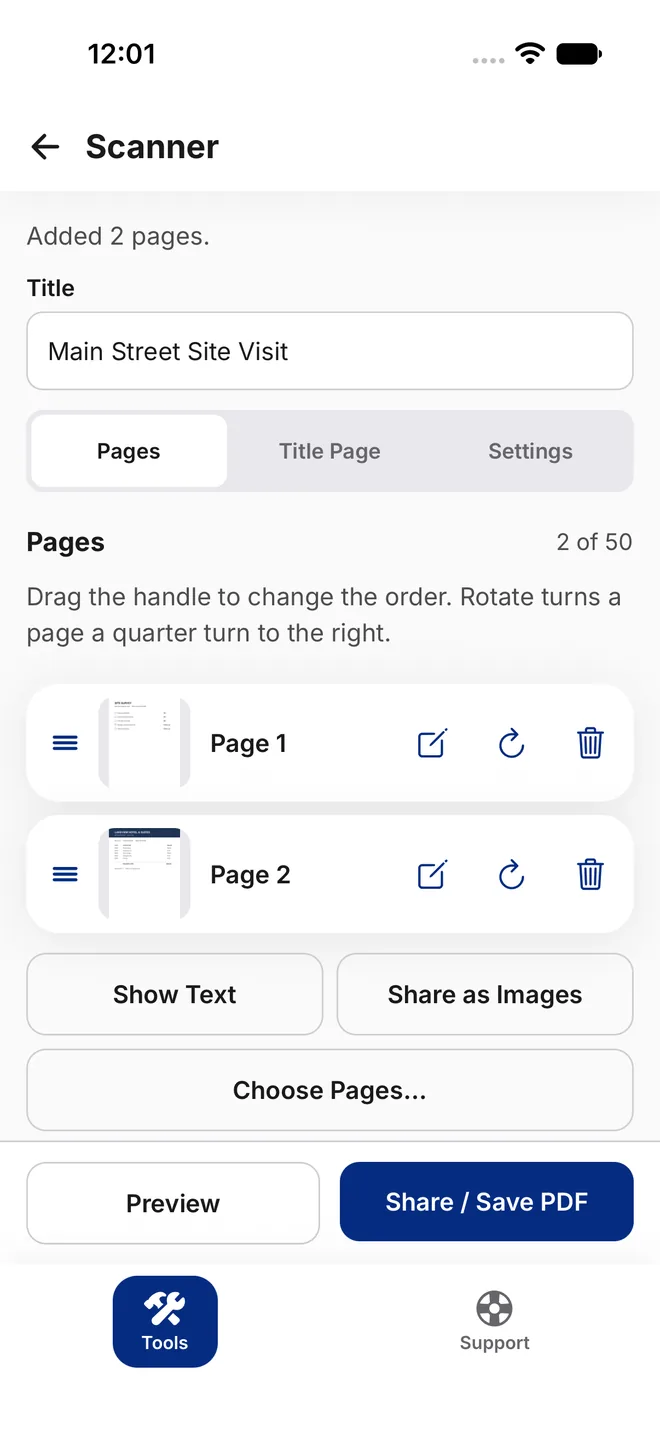
Scan paper into one searchable PDF.
- Scan pages with your phone's document scanner, or add them from Photos or Files.
- Rotate and rearrange pages, and add a title page if you want one.
- Choose Letter, A4 or the size of the scan, and keep the file under 5, 10 or 25 MB.
- The words on each page are read on your phone, so the PDF is searchable.
- Lock the PDF with a password before you share it.
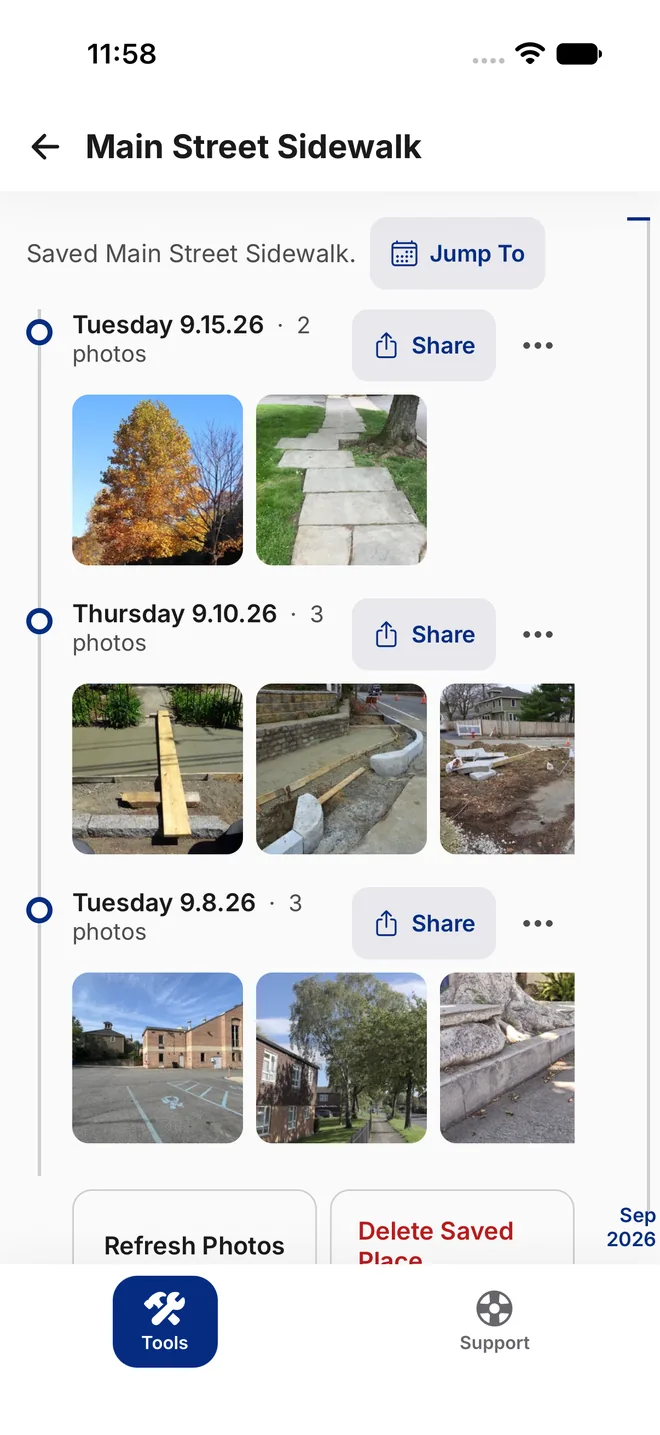
Photos by Place
Find the photos you took at a job site, store or office.
- Save a place by address, by your current location, or by coordinates.
- WorkKit finds the photos taken within 150 meters of it, grouped by day.
- Share a day's photos, or turn them into a Photo PDF.
- The photo index stays on your phone.
Picture Formatter
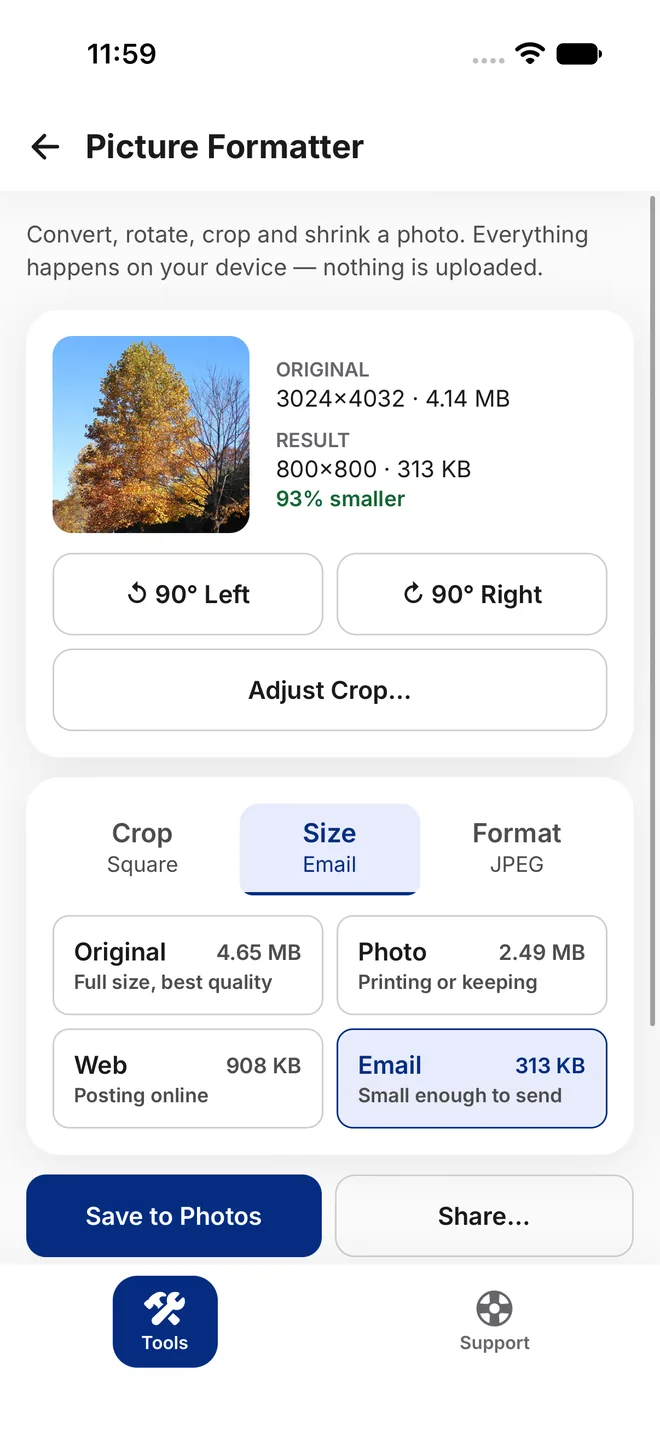
Get a photo ready for wherever it is going.
- Crop to Original, Square, 4:5, 3:2 or 16:9, or pick a print or paper size like 4×6, 5×7, 8×10, 8.5×11 or A4.
- Drag and pinch to frame the crop exactly.
- Choose a size by what it is for: Original, Photo, Web or Email. Each option shows the real file size it will make, before you save.
- Rotate, and save as JPEG or PNG.
- Format up to 50 photos at once with the same settings.
Video Compressor
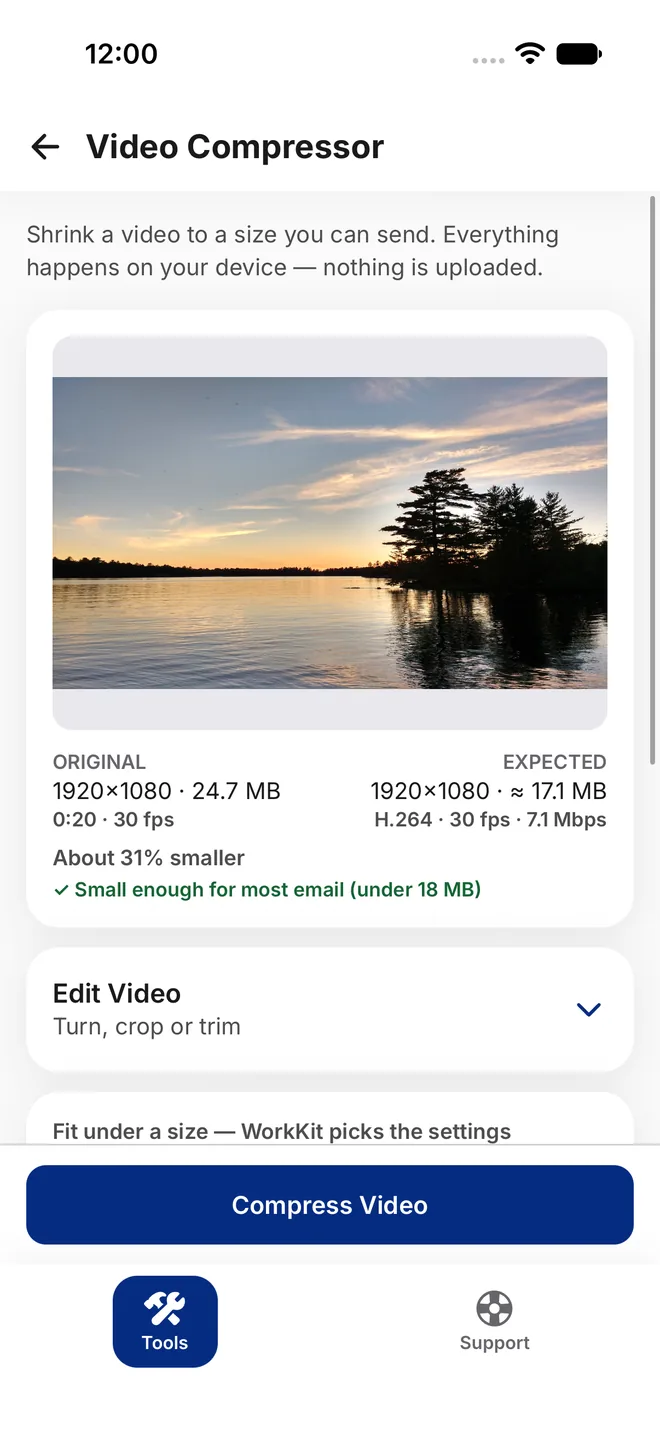
Make a video small enough to send.
- Fit under a size: Email (under 18 MB), 25 MB, 50 MB, or your own limit. WorkKit picks the settings.
- Or choose the resolution and quality yourself, and see the expected file size for your clip first.
- Crop, rotate and trim before you compress.
- H.264 plays everywhere; HEVC where your phone supports it.
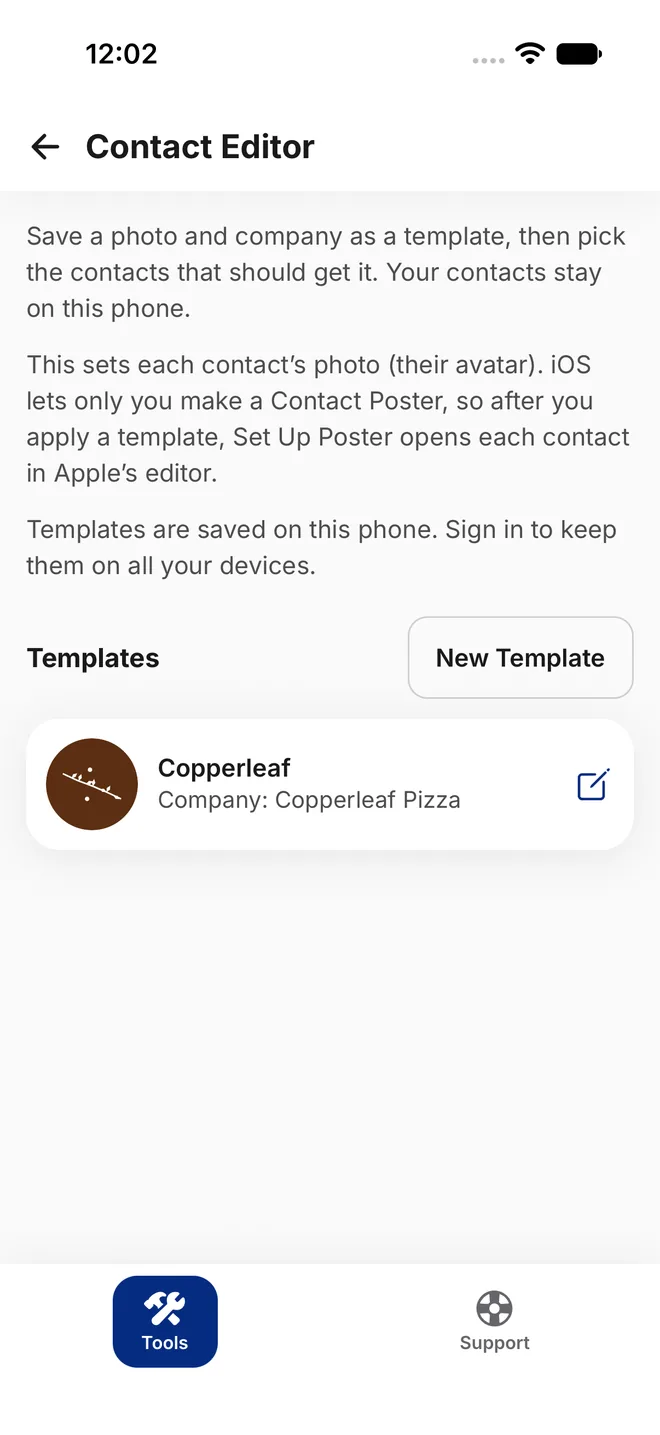
Contact Editor
Update a group of contacts at once.
- Make a template with a photo and a company, then tick the contacts to give them both.
- Keep up to 50 templates; signed in, they follow you to your other devices.
- Your contacts stay on your phone.